(gif로 상세하게 설명하고싶은데 나중에 어떻게 하는지 배워서 수정하겠습니다.)
대학교 게임개발 프로젝트 수업에서 RPG장르를 만들어 보기로 결정했습니다.
글 작성을 시작한지 일주일이 지난 시점에서 작성하는거라 많은게 생략되어있습니다. playerController에
    public Vector2 moveInput;

    public void OnMove(InputValue value)
    {
        moveInput = value.Get<Vector2>();
    }
New Input System의 OnMove함수로 인풋을 받아오고
    void Move()
    {
        IsMove = moveInput.magnitude != 0;

        if (moveInput.y == 1 && Input.GetKey(KeyCode.LeftShift)) //달리기
        {
            sprint = true;
        }
        else
        {
            sprint = false;
        }
        if (IsMove)
        {

            Vector3 moveDir = cameraController.PlanarRotation * new Vector3(moveInput.x, 0, moveInput.y);

            transform.position += moveDir * moveSpeed * Time.deltaTime;
            transform.rotation = cameraController.PlanarRotation;
        }
    }
움직임이 감지되면 카메라가 보는방향으로 이동하게 했습니다.
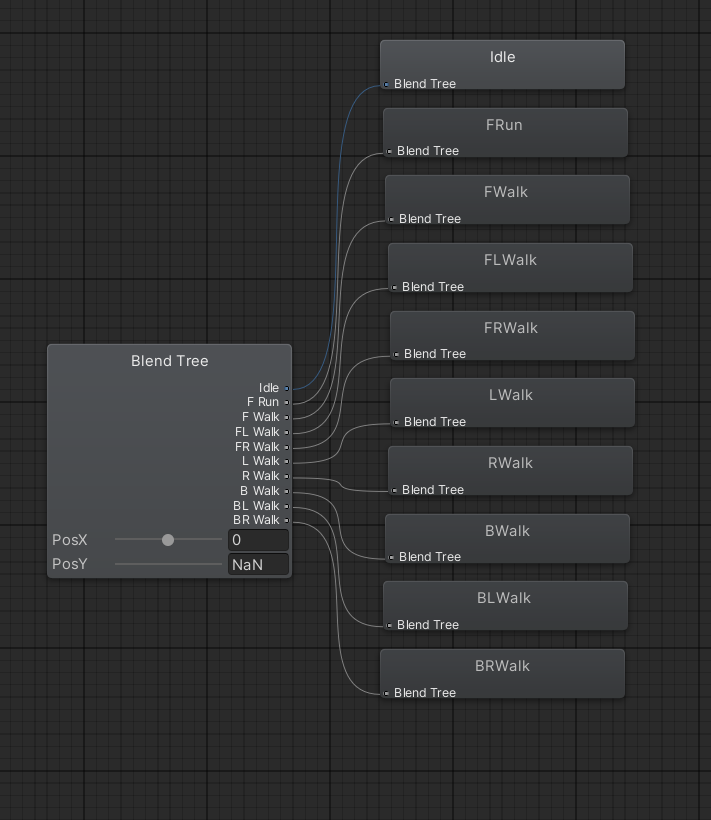
애니메이션은 Blend Tree를 이용해서 아래 사진과 같이 세팅해준후

    public void BlendTreeAnim()
    {
        float currentMaxVelocity = sprint ? maximumRunVelocity : maximumWalkVelocity;

        forwardPressed = moveInput.y <= 1 && moveInput.y > 0;
        leftPressed = moveInput.x >= -1 && moveInput.x < 0;
        rightPressed = moveInput.x <= 1 && moveInput.x > 0;
        backPressed = moveInput.y >= -1 && moveInput.y < 0;

        if (forwardPressed && velocityY < currentMaxVelocity)
        {
            velocityY += Time.deltaTime * accel;
        }
        if (forwardPressed && velocityY > currentMaxVelocity)
        {
            velocityY -= Time.deltaTime * deaccel;
        }

        if (leftPressed && velocityX > -currentMaxVelocity && !sprint)
        {
            velocityX -= Time.deltaTime * accel * speedMultiplier;
        }
        if (rightPressed && velocityX < currentMaxVelocity && !sprint)
        {
            velocityX += Time.deltaTime * accel * speedMultiplier;
        }
        if (backPressed && velocityY > -currentMaxVelocity && !sprint)
        {
            velocityY -= Time.deltaTime * accel;
        }

        if (!forwardPressed && velocityY > 0)
        {
            velocityY -= Time.deltaTime * deaccel;
        }
        if (!backPressed && velocityY < 0)
        {
            velocityY += Time.deltaTime * deaccel;
        }

        if (!leftPressed && velocityX < 0)
        {
            velocityX += Time.deltaTime * deaccel;
        }
        if (!rightPressed && velocityX > 0)
        {
            velocityX -= Time.deltaTime * deaccel;
        }

        Anim.SetFloat("PosY", velocityY);
        Anim.SetFloat("PosX", velocityX);

    }
moveInput의 값에따라 어느 방향키를 눌렀는지 처리해준 후 움직일때, 누른 시간만큼 accel이 점점 곱해지면서
PosY,PosX값을 올리거나 내린다. 키보드를 떼면 deaccel값을 곱해줘서 다시 0으로 되돌립니다.
괜찮은 방식이지만 여기서의 문제점은 왼쪽을 누르고있다가 방향전환으로 오른쪽 방향키를 눌렀을때,
애니메이션이 left -> idle -> right을 거쳐서 전환되기때문에 뚝뚝 끊기는 모습을 볼수있습니다.
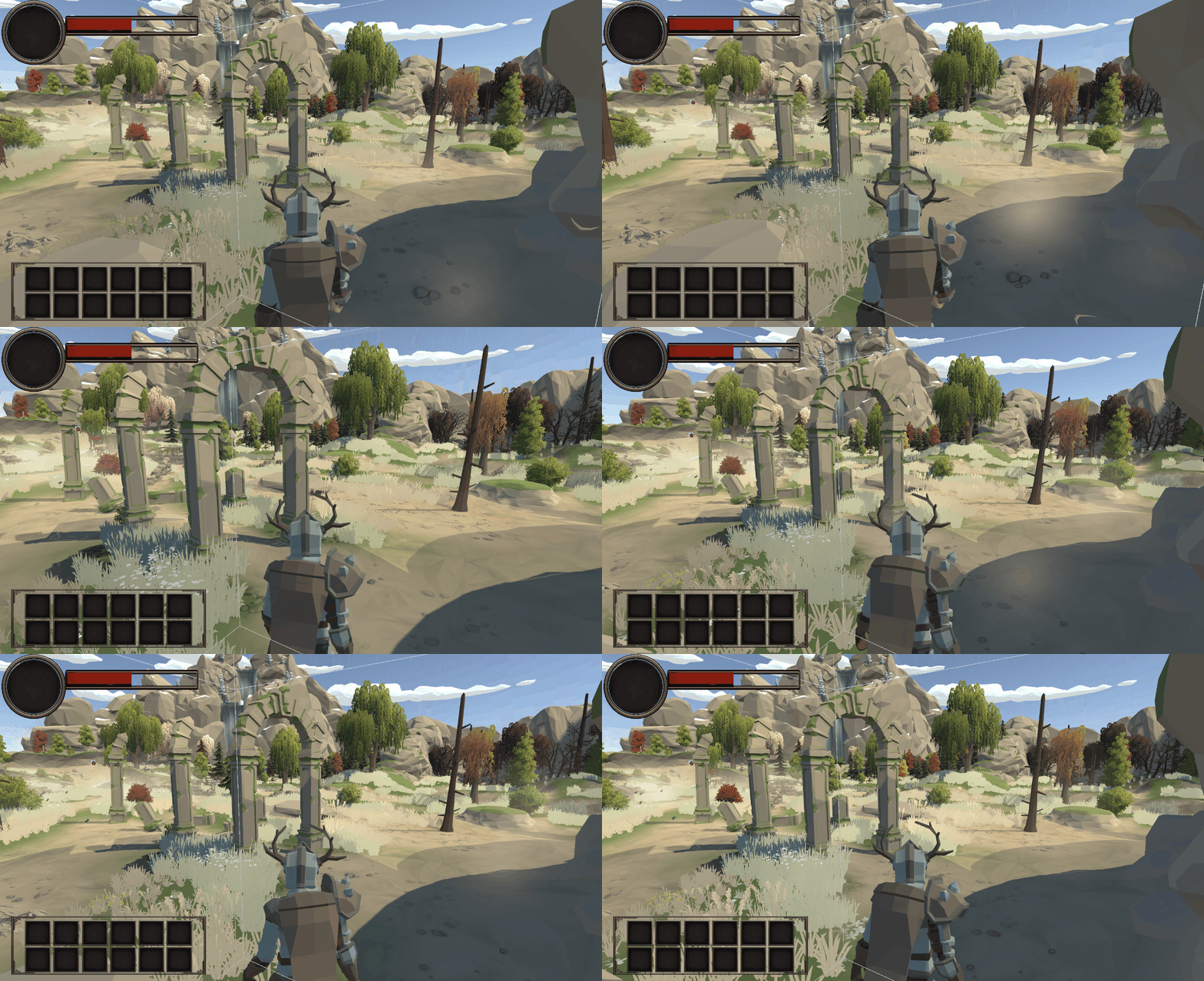
이것을 해결하기위해 다음과 같이 왼쪽을 누르다가 오른쪽을 누르면 반전시켜서 최대한 자연스럽게 이어지도록 했습니다.
        if (leftPressed && velocityX > 0 && !sprint)
        {
            velocityX = -velocityX;
        }

        if (rightPressed && velocityX < 0 && !sprint)
        {
            velocityX = -velocityX;
        }

        if (forwardPressed && velocityY < 0 && !sprint)
        {
            velocityY = -velocityY;
        }

        if (backPressed && velocityY > 0 && !sprint)
        {
            velocityY = -velocityY;
        }

그리고 player의 정보가 들어있는 playerInfo
using System.Collections;
using System.Collections.Generic;
using System.ComponentModel;
using UnityEngine;
using UnityEngine.UIElements;
public class PlayerInfo : MonoBehaviour
{

    public static PlayerInfo Instance { get { return instance; } }
    private static PlayerInfo instance;
    public float MaxHP { get { return maxHP; } }
    public float CurrentHP
    {
        get { return currentHP; }
        protected set
        {
            currentHP = value;
        }
    }
    [SerializeField] protected float maxHP;
    [SerializeField] protected float currentHP;
    public PlayerController playerController;
    public bool isDie { get; private set; }


    void Awake()
    {
        if (instance == null)
        {
            instance = this;
            playerController = GetComponent<PlayerController>();
            DontDestroyOnLoad(gameObject);
            return;
        }
        DestroyImmediate(gameObject);
    }

    private void Start()
    {
        isDie = false;
    }

    private void Update()
    {

        if(currentHP <= 0 && !isDie)
        {
            isDie = true;
            playerController.Anim.Play("Die");

        }
    }

    public void TakeDamage(float dmg)
    {
        currentHP -= dmg;
    }


}
playerInfo는 여기저기 쓰일데가 많아 싱글톤으로 구현했습니다.
플레이어의 공격은

애니메이터에서 트리거를 입력받고 계속 입력하면 다음 공격이 나가도록 설정했습니다.
다음으로 Enemy를 만들차례인데,
간략하게만 말하자면 상태패턴으로 구현했다.지금 까지 구현해놓은 state는 Idle,Combat,Attack이 있습니다.
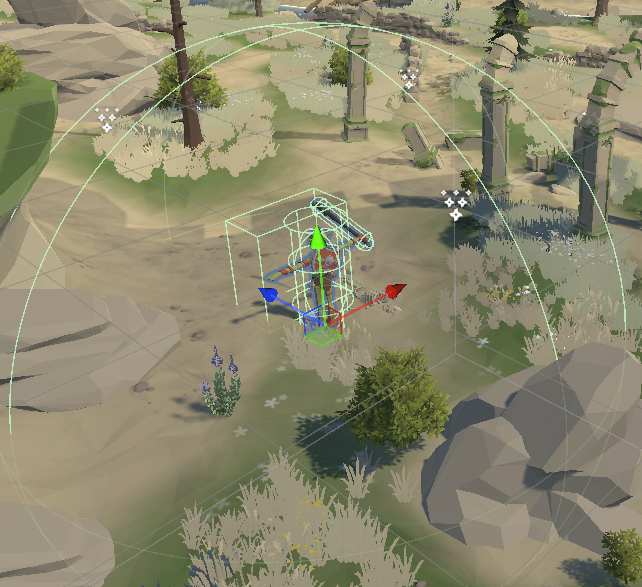
sphere를 설정해 플레이어가 안에서 감지되면 forward기준으로 각도를 계산하는데 이걸로 몬스터의 시야각을 만들어줄수있습니다.
    public PlayerInfo FindTarget()
    {

        foreach (var target in targetPlayerInRange)
        {
            var vectToTarget = target.transform.position - transform.position;
            float angle = Vector3.Angle(transform.forward, vectToTarget);
            if (angle <= Fov / 2)
            {
                return target;
            }
        }
        return null;
    }
}
감지된적이 시야에 보이면 target으로 설정하고 combat state에 들어가 거리가 멀어지면 chase를 시작하고, 공격범위 내에 들어오면 attack state로 전환후 공격하게 만들었습니다.
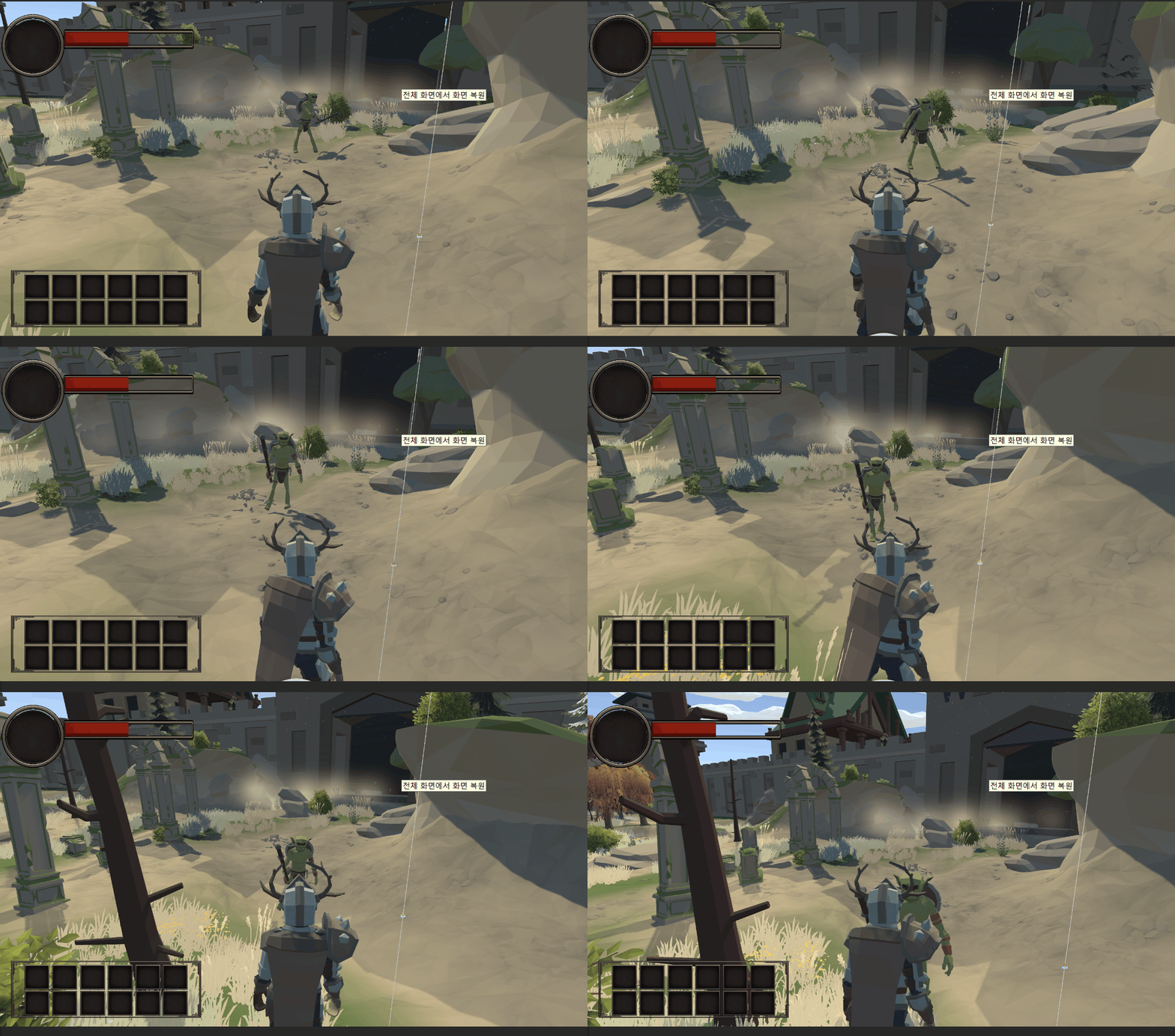
여기 까지 전체적인 설명입니다.
다음으로는 UI부분을 다뤄보고자 합니다.
'Unity' 카테고리의 다른 글
| #3. 데이터 관리 (0) | 2024.12.25 |
|---|---|
| #2.1 UI 설정 (0) | 2024.12.23 |
| #2 Managers 평가 + UI (0) | 2024.12.23 |